



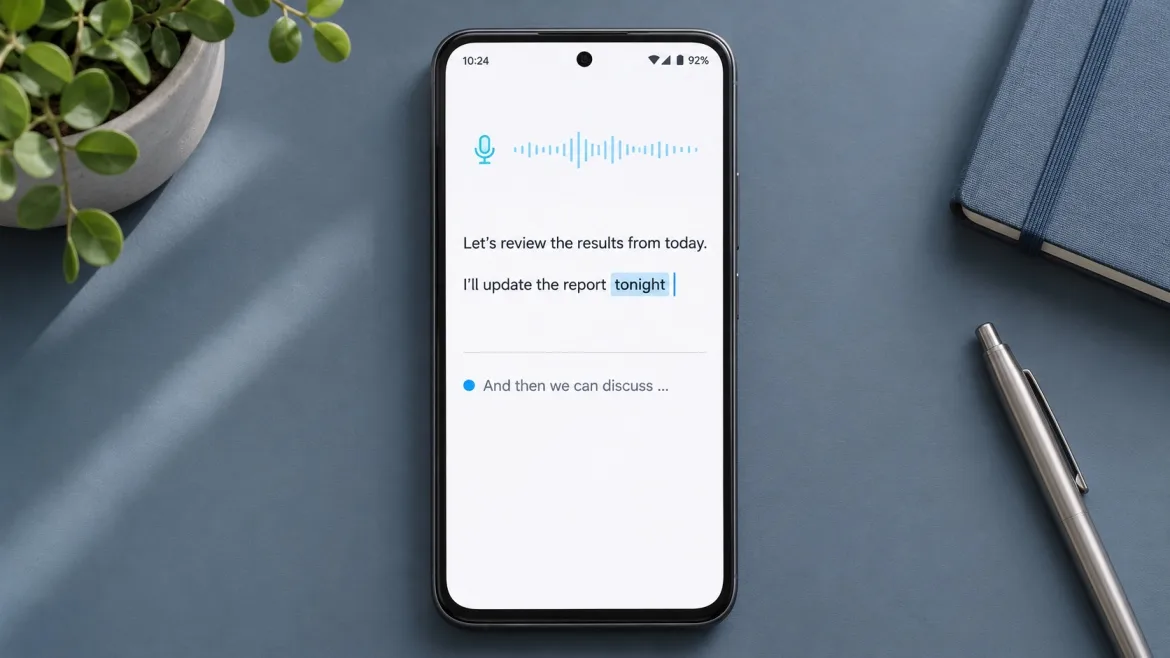
A clinician says “Asha,” and the live transcript first displays “Asia.” A teammate corrects the name while the conversation continues. Seconds later, the recognizer delivers another update. If the app stores the transcript in a single text field and replaces its contents on every callback, the correction can disappear and the keyboard cursor can jump.
A Flutter transcript works better when its data model distinguishes interim recognition, finalized recognition, and human corrections. Interim text can change as audio arrives. Finalized text provides a stable segment to edit. A saved correction becomes the displayed text for that segment, and the original recognition remains available for review.
Normalize speech results before updating the UI
Give each result a stable segment ID, a revision or ordering token, the recognized text, and a finality flag. Scope IDs to the recording session and, where applicable, the audio channel. If the provider has no stable segment ID, the adapter must derive one using the provider’s utterance boundaries or result metadata. An interim hypothesis can change both its text and its end offset, so avoid using either as its identity.
An interim result usually represents a replacement hypothesis for a span of speech. Appending every hypothesis would turn successive updates such as “Send,” “Send it to,” and “Send it to Asha” into repeated text. Replace the provisional row for that segment. When a final result arrives, keep the segment ID and make the row editable. A recognizer’s final flag tells the app the provider is treating the segment as complete. People can still correct the words.
Treat finality and end-of-utterance as distinct signals where the provider supports both. Deepgram documents is_final for a finalized audio span and speech_final for a detected pause. Several finalized spans can arrive before one pause. An adapter that waits for speech_final and keeps only that response can drop earlier words.
Build an editable Flutter transcript
The example accepts a stream of normalized events. It assumes the adapter emits segments in display order and assigns increasing revisions within a segment. A final update must have a higher revision than any earlier interim update for that ID. If the transport can reconnect and replay events, preserve the original event identities and ordering across reconnects. A counter that restarts on every socket connection cannot distinguish a replay from a new result.
The UI keeps ASR events and human edits in separate maps. It edits one finalized row in a dialog while recognition continues. The editor receives its starting value once, so incoming events leave the keyboard selection and composing region under the user’s control. Flutter’s controller documentation explains that assigning its text property clears the selection and composing range.
import 'dart:async';

import 'package:flutter/material.dart';

typedef SpeechUpdate = ({
  String id,
  int revision,
  String text,
  bool isFinal,
});

class LiveTranscript extends StatefulWidget {
  const LiveTranscript({super.key, required this.updates});

  final Stream<SpeechUpdate> updates;

  @override
  State<LiveTranscript> createState() => _LiveTranscriptState();
}

class _LiveTranscriptState extends State<LiveTranscript> {
  final _segments = <String, SpeechUpdate>{};
  final _corrections = <String, String>{};
  late final StreamSubscription<SpeechUpdate> _subscription;
  bool _ended = false;
  bool _interrupted = false;

  @override
  void initState() {
    super.initState();
    _subscription = widget.updates.listen(
      _accept,
      onError: (Object error, StackTrace stackTrace) {
        if (mounted) setState(() => _interrupted = true);
      },
      onDone: () {
        if (mounted) setState(() => _ended = true);
      },
    );
  }

  void _accept(SpeechUpdate next) {
    final previous = _segments[next.id];
    if (previous != null &&
        (previous.isFinal || next.revision <= previous.revision)) {
      return;
    }
    setState(() {
      _segments[next.id] = next;
      _interrupted = false;
    });
  }

  Future<void> _edit(SpeechUpdate segment) async {
    final initialText = _corrections[segment.id] ?? segment.text;
    var draft = initialText;
    final saved = await showDialog<String>(
      context: context,
      builder: (dialogContext) => AlertDialog(
        title: const Text('Correct transcript segment'),
        content: TextFormField(
          initialValue: initialText,
          autofocus: true,
          maxLines: 4,
          onChanged: (value) => draft = value,
        ),
        actions: [
          TextButton(
            onPressed: () => Navigator.of(dialogContext).pop(),
            child: const Text('Cancel'),
          ),
          FilledButton(
            onPressed: () => Navigator.of(dialogContext).pop(draft.trim()),
            child: const Text('Save'),
          ),
        ],
      ),
    );

    if (!mounted || saved == null) return;
    setState(() => _corrections[segment.id] = saved);
  }

  @override
  void dispose() {
    unawaited(_subscription.cancel());
    super.dispose();
  }

  @override
  Widget build(BuildContext context) {
    final rows = _segments.values.toList(growable: false);
    return ListView.builder(
      itemCount: rows.length,
      itemBuilder: (context, index) {
        final segment = rows[index];
        final correction = _corrections[segment.id];
        final label = segment.isFinal
            ? (correction == null ? 'Final' : 'Corrected')
            : (_ended || _interrupted ? 'Unconfirmed' : 'Live draft');

        return ListTile(
          key: ValueKey(segment.id),
          title: Text(correction ?? segment.text),
          subtitle: Text(label),
          trailing: segment.isFinal
              ? IconButton(
                  icon: const Icon(Icons.edit_outlined),
                  tooltip: 'Correct segment ${index + 1}',
                  onPressed: () => _edit(segment),
                )
              : null,
        );
      },
    );
  }
}
Mount the widget in a bounded area such as an Expanded and keep the same stream instance for the recording session. Use a new widget key for a new session. The sample treats an empty saved string as an intentional blank correction and leaves the original recognition in memory. In a persistent transcript, store the correction alongside the original segment ID, timing, and speaker label. For shared editing, use a revision check when saving so one editor’s stale draft cannot silently replace another person’s correction.
The sample uses a provider-supplied final event to lock each segment. If the stream ends unexpectedly, the remaining draft stays unconfirmed. For a normal Stop action, ask the provider to finalize or close the audio input according to its protocol, then keep receiving results until the response stream closes or the app reaches a timeout. For a long transcript, profile incoming updates before optimizing. One improvement is to render the live draft separately so each revision does less work in the history list.
How five companies handle live transcripts or corrections
| Company | Publicly documented practice | What Flutter developers can apply |
|---|---|---|
| GeekyAnts | Its Flutter tutorial uses speech_to_text and updates the display from the recognition callback. A separate meeting-summarizer proof of concept uses device speech recognition for live input and local Whisper for recorded audio. The public examples cover recognition and display. | Start with the callback-driven display and add separate state for finalized segments and user edits. |
| Google Cloud | Cloud Speech-to-Text distinguishes interim and final results and can provide an interim stability estimate. Stability estimates how likely a result is to change. Confidence concerns recognition accuracy. | Use stability to inform provisional display if helpful. Keep the finality flag as the transition to an editable segment. |
| Amazon Web Services | Amazon Transcribe can flag individual words and punctuation as Stable when partial-result stabilization is enabled. Its documentation describes a latency and accuracy trade-off as stabilization increases. | With compatible results, keep the stable prefix visually steady while updating the trailing words. |
| Deepgram | Interim updates, finalized spans, and detected pauses have distinct signals in the streaming API. | Commit each finalized span and use a pause signal separately when grouping spans into utterances. |
| Microsoft | Teams displays live transcripts with speaker names and timestamps. Microsoft also documents a separate transcript-editing workflow for meeting organizers after the recording is uploaded to OneDrive or SharePoint. | Keep speaker and timing metadata attached to the segment and give correction its own interaction and permission rules. |
For short dictation or voice commands, the platform-backed speech_to_text plugin is a reasonable starting point. Its documentation identifies short phrases and commands as its target use cases. In the callback, map recognizedWords to the event text and finalResult to the finality flag. A platform may return only a final result. For continuous meeting transcription, use a speech engine designed for long-running streams and map its output into the same transcript model.
Test the transcript with recorded event sequences
Replay events in a Flutter widget test before adding the microphone or a live network connection. Start with interim “Send it to Asia,” finalize the segment, save “Send it to Asha,” and replay the earlier interim and final events. The row should still display the correction. Then pause inside the edit dialog and send a burst of updates for the next segment. Check that the draft and cursor remain where the user left them.
| Test | Expected outcome |
|---|---|
| Interim revisions arrive out of order | The visible draft stays on the latest accepted revision. |
| A final event is replayed after an edit | The row remains corrected and the original recognition is still available. |
| The stream closes with a draft still active | The row shows “Unconfirmed.” |
| New results arrive while the reader scrolls back | A production view preserves the reading position, with follow-live behavior only when the reader is near the bottom. |
| On-device replay of a long session | Flutter DevTools shows how much frame time the UI and raster threads spend rendering updates. |
Measure time to first interim text and time to final text separately. Track correction time and the share of segments users edit. If the team has a human reference transcript, word error rate measures substitutions, insertions, and deletions relative to the reference word count. Correction time answers a different product question: how quickly can a person fix what the recognizer missed?
The release test is whether someone can correct a line while speech continues, return to it later, and find the saved wording alongside its original timing and speaker context.